Table Controls
Most ModbusLab views use the same table behavior. This page covers the interactions shared by Memory, Watch, Simulation, Rules, Reactions, Clients, Blocks, Log, and Stats.
Selection And Footers
Click a row to select it. Many views show a footer above the grid with details for the selected row, such as decoded memory values, traffic summaries, request bytes, latency, or rule counters.
Right-clicking a row selects it before opening the row context menu. Clicking empty grid space clears the current selection.
Use Ctrl+A to select all rows in the focused grid.
Sorting
Click a column header to sort by that column. Click again to reverse the sort.
Traffic views may refresh while the server is running. Blocks uses a stable range-first default order so request counters and last-seen timestamps do not constantly reshuffle rows during polling.
Clients, Blocks, Log, and Stats also include Freeze updates. This freezes the visible table and footer so new traffic does not add, remove, update, or reorder rows while you inspect the current state. The server keeps processing traffic in the background. Use Resume live to synchronize the view with the current runtime state again.
Row Context Menus
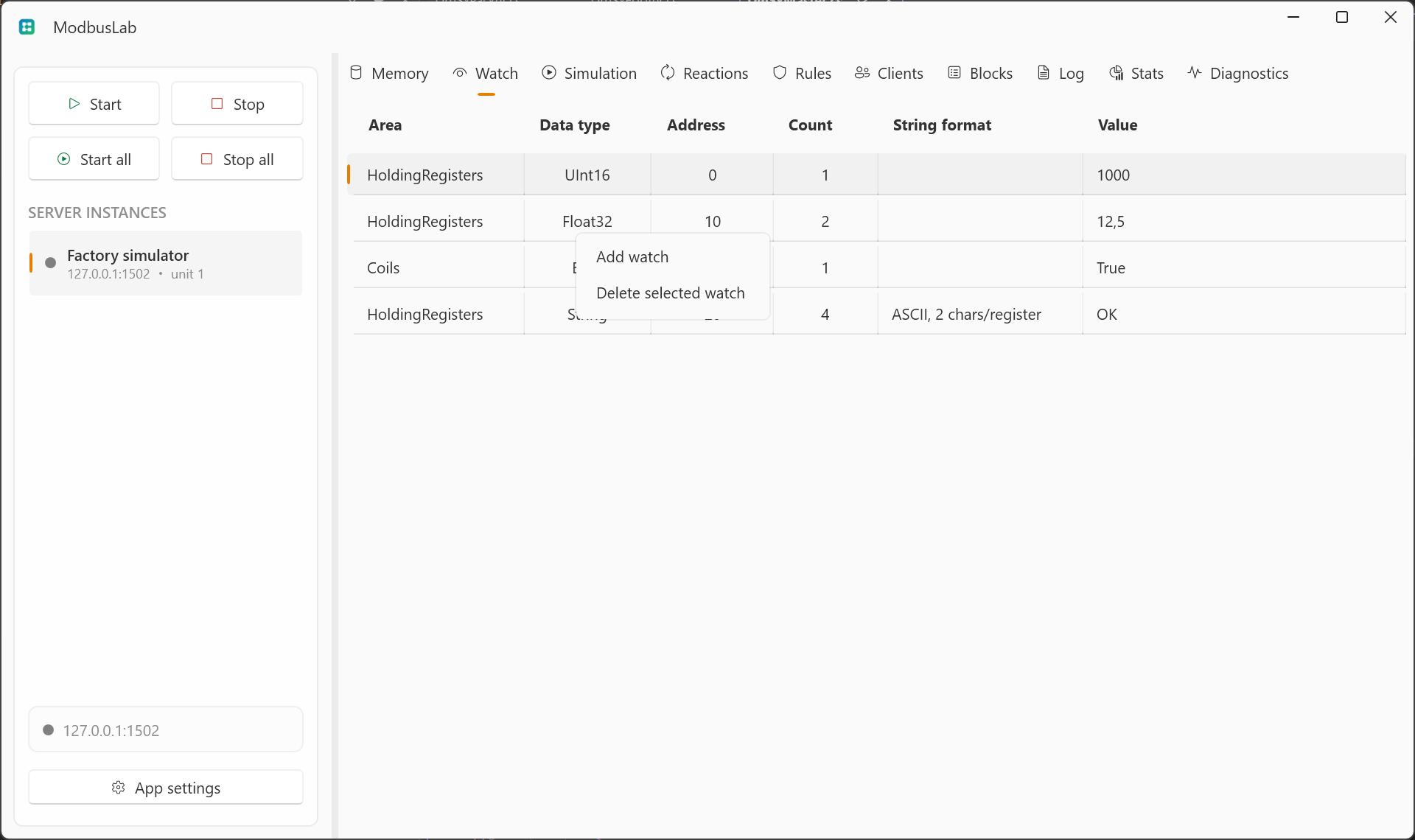
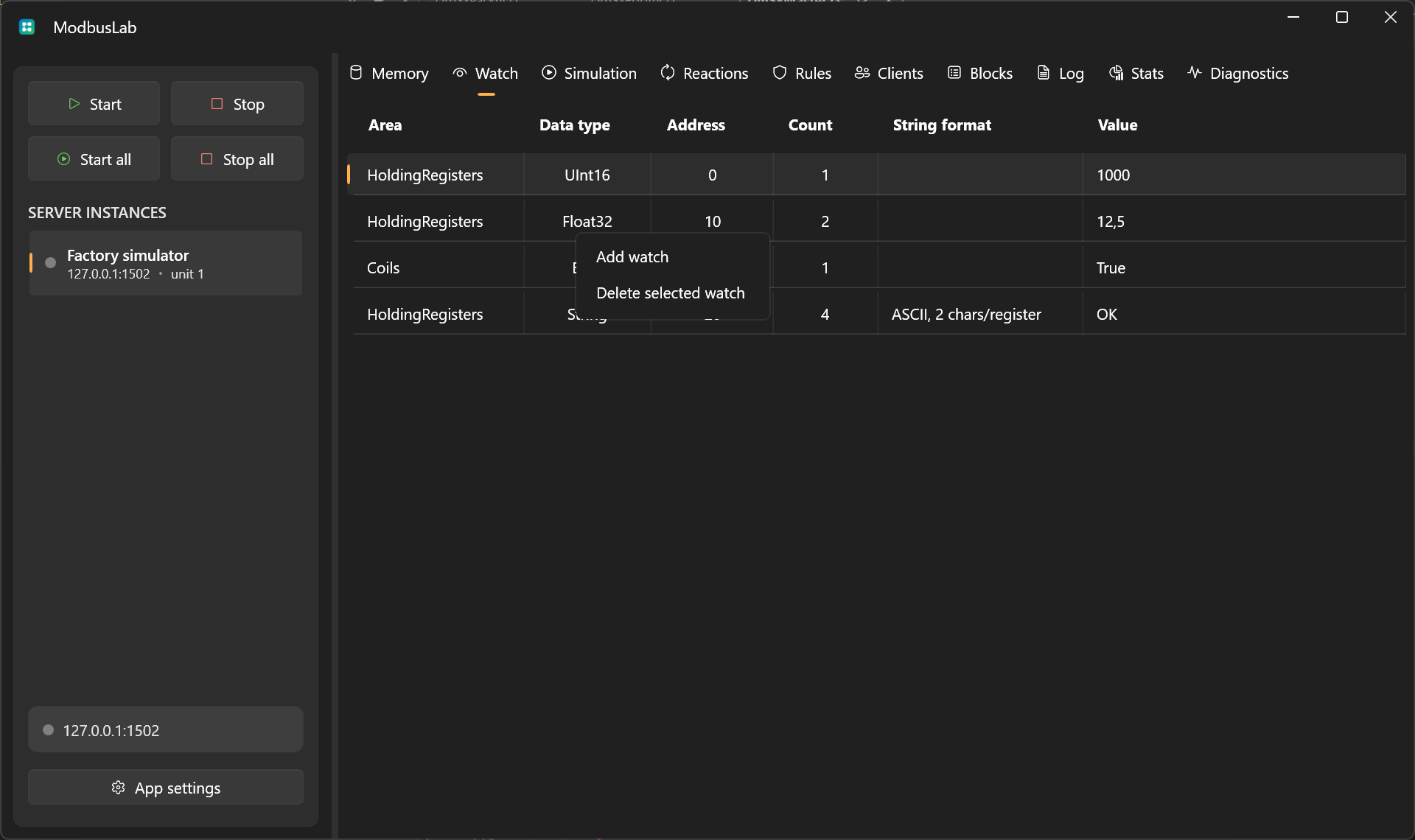
Right-click a row to open actions for the current view.
Common actions include:
- Memory: clear selected memory.
- Watch: add a watch or delete the selected watch.
- Simulation: add, edit, delete, and reset hit counters.
- Rules: add, edit, delete, and reset hit counters.
- Reactions: add, edit, delete, and reset hit counters.
- Clients: disconnect selected clients, clear inactive clients, or clear all inactive clients.
- Blocks: clear selected blocks or all observed blocks.
- Log: clear selected entries or all log entries.
- Stats: reset counters.
Header Context Menu
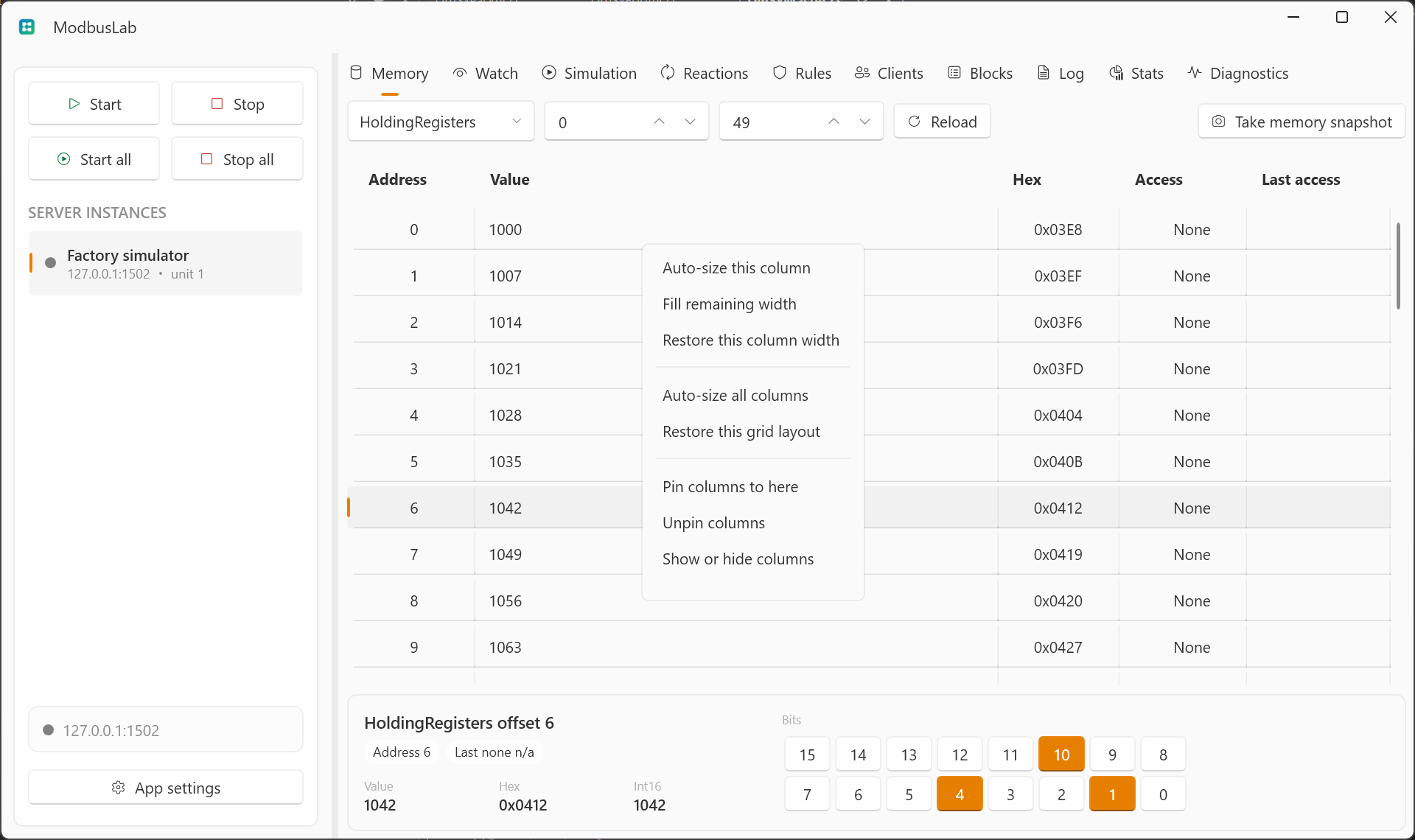
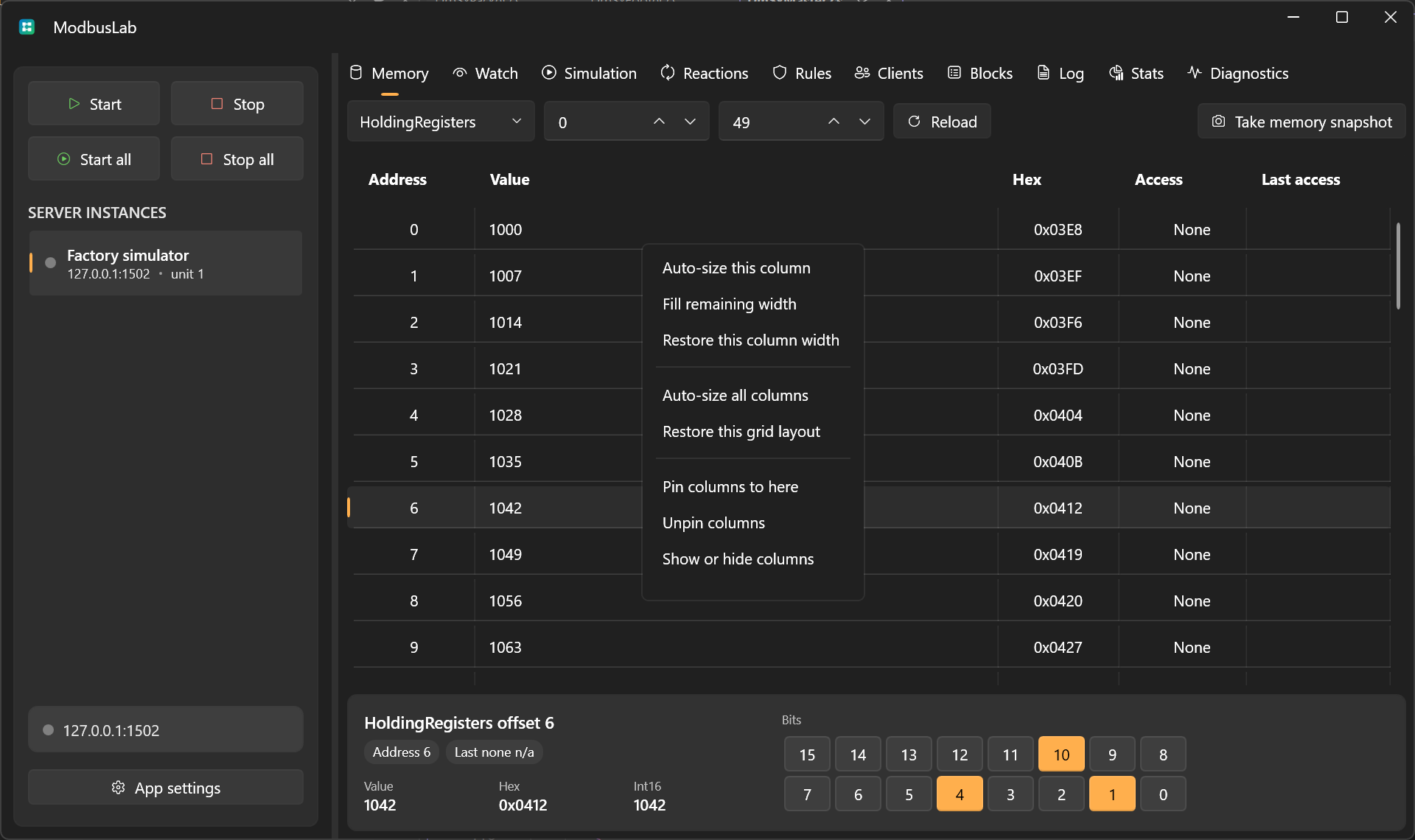
Right-click a column header to customize the grid layout:
- Auto-size this column sizes the selected column to its content.
- Fill remaining width makes the column stretch into available space.
- Restore this column width returns one column to its default width.
- Auto-size all columns sizes every column to content.
- Restore this grid layout resets widths, hidden columns, and pinned columns.
- Pin columns to here keeps columns up to the selected header visible while scrolling horizontally.
- Unpin columns removes pinned columns.
- Show or hide columns toggles optional columns.
Grid layout choices are saved with the project UI state.
Pinned columns are layout settings. They are different from Freeze updates, which temporarily pauses live table refreshes and is not saved with the project.
Editable Record Grids
Watch, Simulation, Rules, and Reactions are editable record grids.
Use Enter while the grid is focused to add a row. Use Delete to delete selected rows. Simulation, Rules, and Reactions also open their editor window when you double-click a row or choose the edit command from the context menu.
Watch rows are edited inline directly in the grid.