Getting Started
This guide walks through the first useful ModbusLab session: start a local Modbus TCP server, connect a client, inspect memory, and watch traffic.
Requirements
To run an official published build:
- Windows 10 or Windows 11.
- No separate .NET runtime when using the self-contained release build.
To build from source:
- Windows.
- .NET SDK 11.0 preview or newer compatible SDK.
- An editor is optional. The app can be built directly from a terminal with the .NET SDK.
Run ModbusLab
Use an official release build when available, or build from source:
dotnet build .\ModbusLab.slnx
Build outputs are written under artifacts/bin.
Create Your First Server
- Open ModbusLab.
- Select the default server instance or add a new one from the server list context menu.
- Open the selected server settings by choosing Settings in the main navigation, or right-click the server in the server list and choose Server settings.
- Use a test port such as
1502. - Leave Bind address as
0.0.0.0to accept clients on all local interfaces. - Leave Unit ID empty if any unit should be accepted.
- Apply settings and start the server.
Tip
Port 502 is the standard Modbus TCP port, but it can require administrator rights on Windows. Use 1502 for local testing unless you specifically need port 502.
Connect A Client
Point your Modbus TCP client to:
- host:
127.0.0.1for same-machine testing, or the PC IP address for another device; - port: the server port, for example
1502; - unit ID: any value if the server Unit ID is empty.
Read holding registers starting at address 0 with quantity 10. You should see requests appear in the live traffic views.
Inspect Memory
Open Memory and choose the area you want to inspect:
- Coils
- Discrete Inputs
- Holding Registers
- Input Registers
Edit values directly in the grid. Local edits are saved and can trigger reactions depending on the server reaction policy.
Add A Watch
Open Watch, then add a row from the grid context menu or press Enter while the Watch grid is focused. Select:
- area:
HoldingRegisters; - address:
0; - data type:
UInt16,Float32,Double,String, or another supported type.
Watches provide typed views over raw Modbus memory and can also write values back into memory.
Generate Values
Open Simulation, then add a rule from the grid context menu or press Enter while the Simulation grid is focused. Choose a target address or Watch, then select a mode such as Counter, Toggle, Sine, Random, Ramp, Pulse, or Noise. Start simulation for the selected server to update memory periodically.
Move Or Automate A Workspace
Right-click a server in the server list to export the selected server or import a server file. Server export files include persistent server settings, memory, startup snapshot, watches, simulation rules, fault rules, and reactions.
Application Settings also include an optional local MCP server. Enable it when you want an MCP-capable LLM client to inspect or control the running ModbusLab workspace.
Analyze Traffic
Use:
- Clients to see connected clients and per-client rates.
- Blocks to understand which memory ranges are being polled.
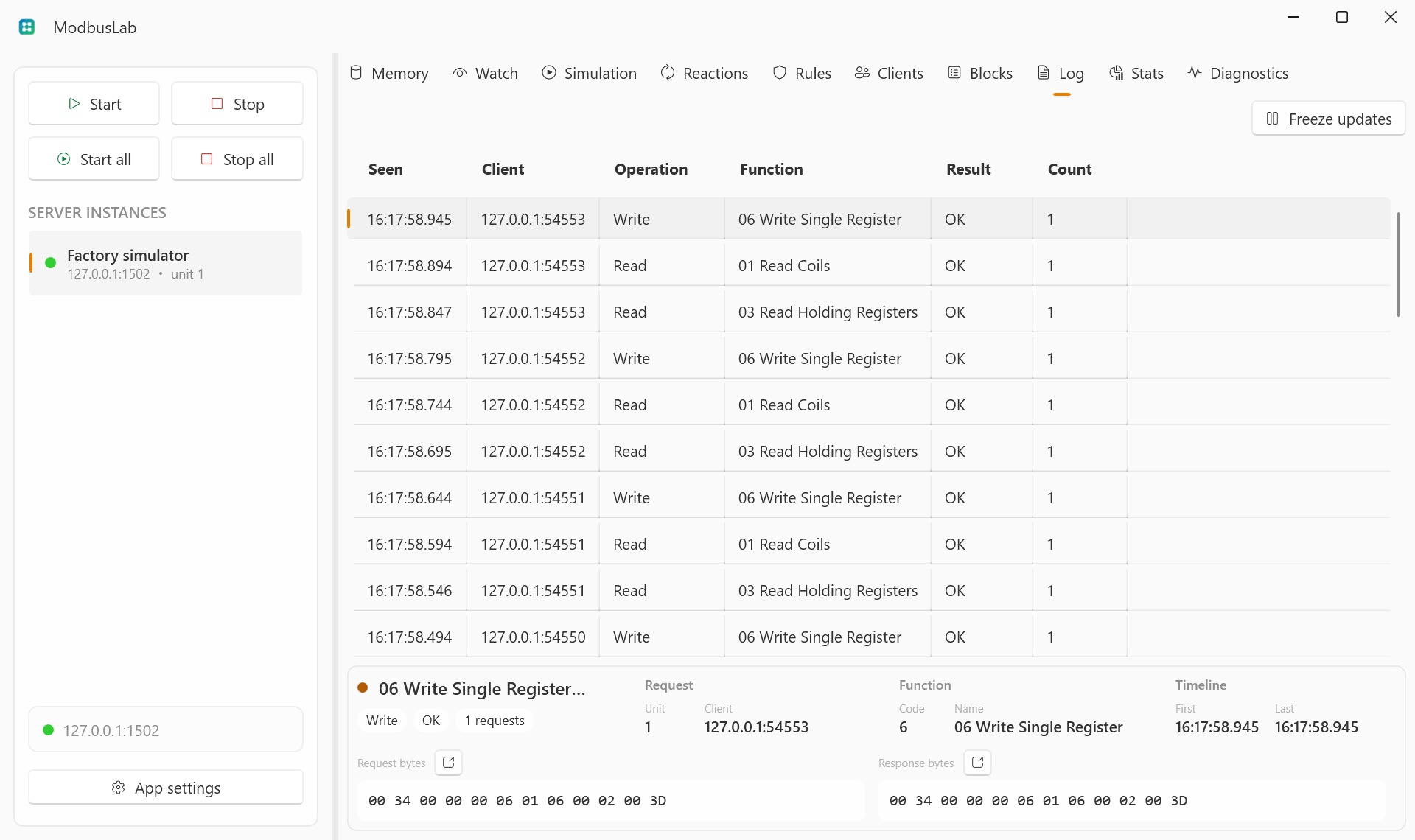
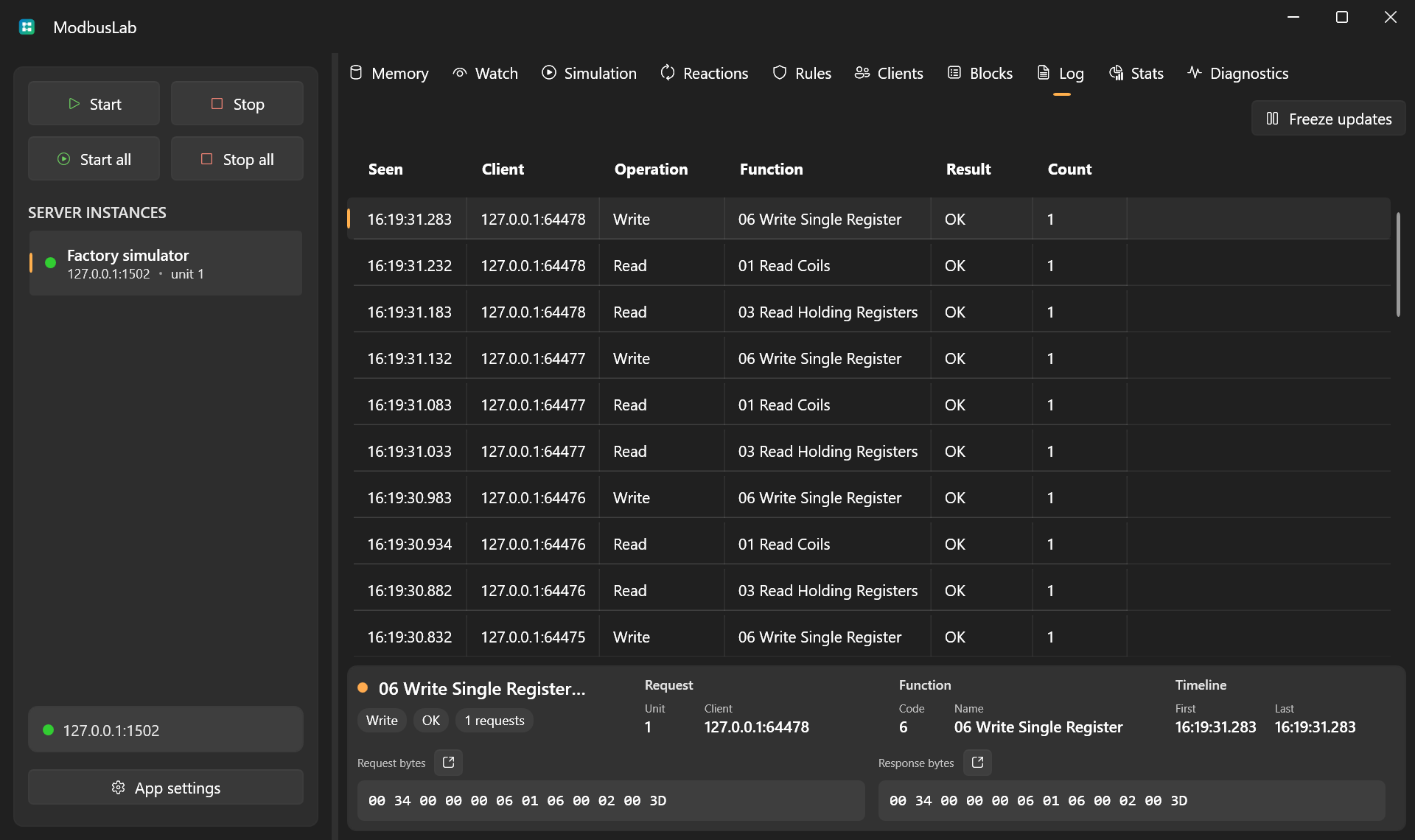
- Log to inspect grouped request/response entries and byte payloads.
- Stats to monitor counters, rates, and latency.