Simulation
Simulation rules update memory periodically. Use them to emulate changing process values without writing a custom Modbus device.
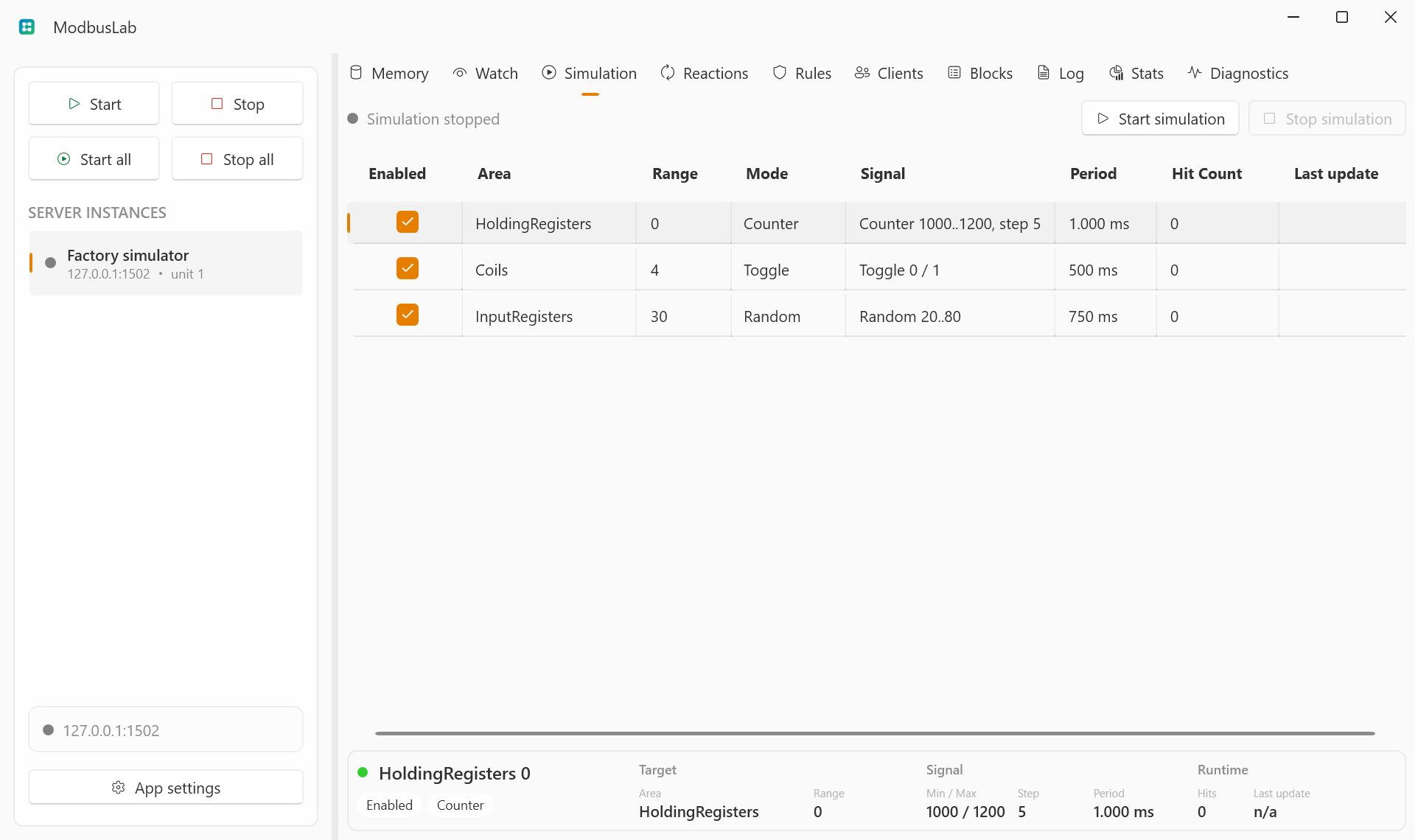
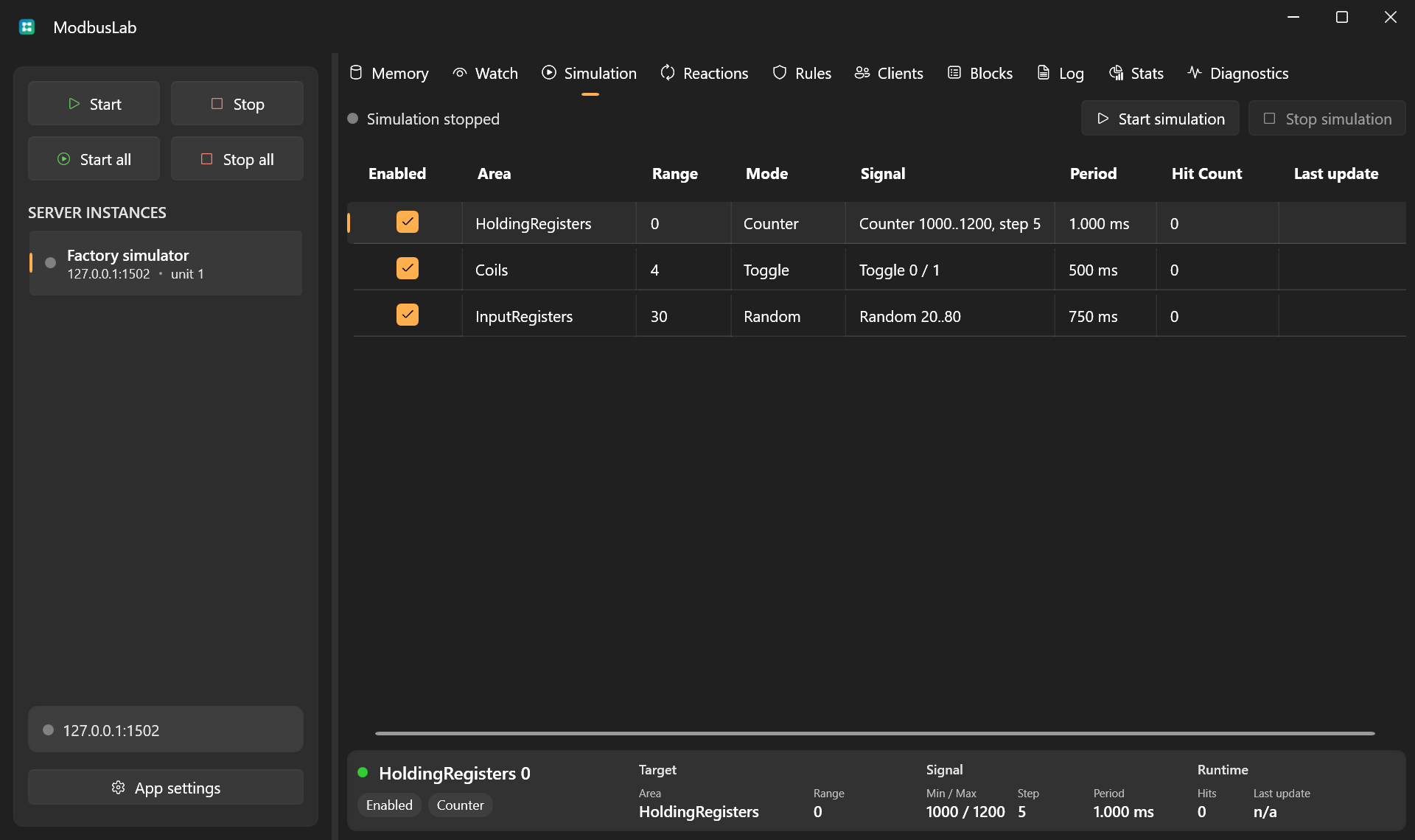
Rule Fields
A simulation rule can be added from the grid context menu or with Enter while the Simulation grid is focused. Double-click a row, or choose Edit simulation rule, to open the editor.
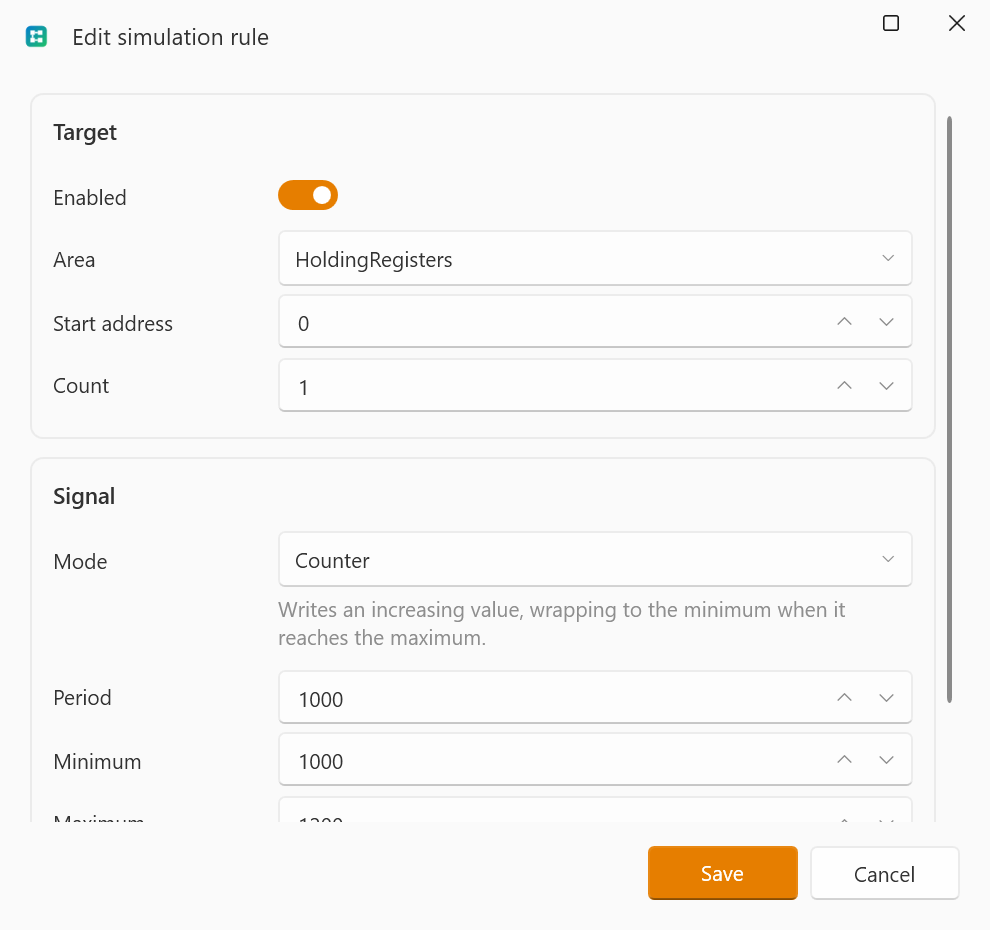
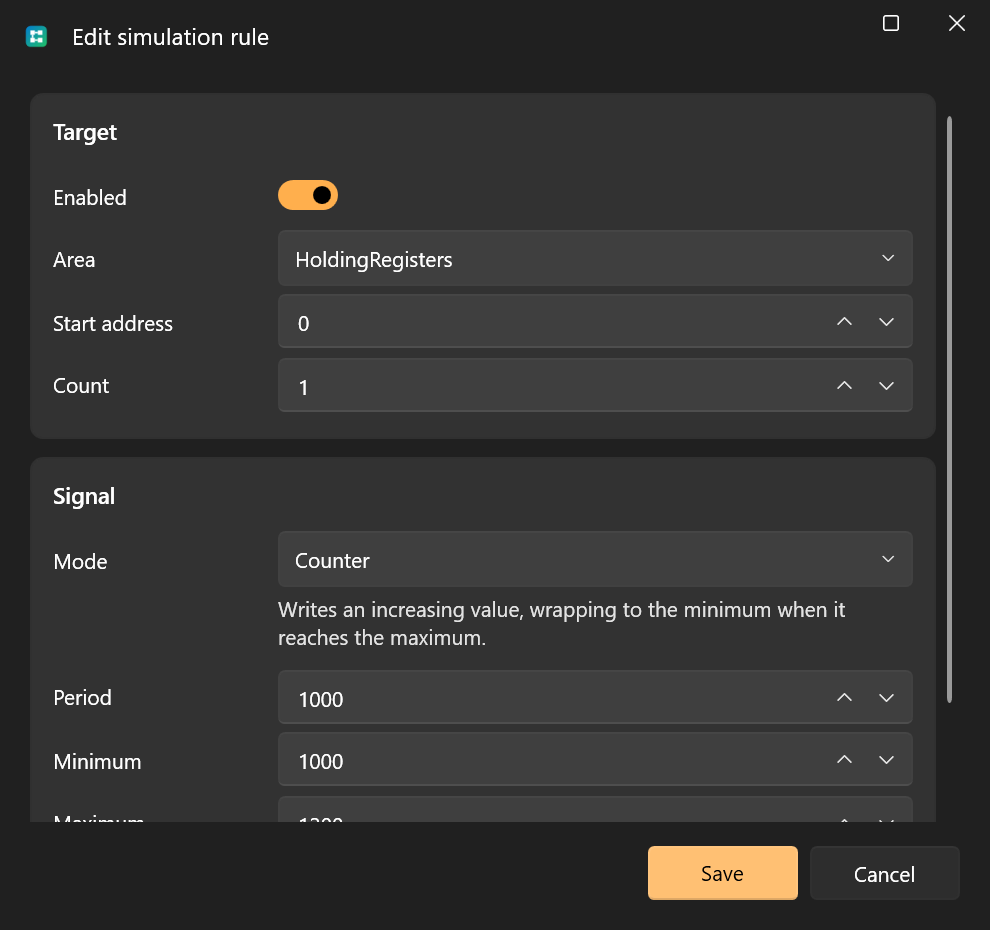
A simulation rule defines:
- target kind: raw memory address or an existing Watch;
- memory area;
- start address;
- number of values;
- signal mode;
- period;
- minimum and maximum values;
- step value for counters and ramps;
- optional timing controls such as initial delay, duration, max hits, phase offset, and jitter.
When a rule targets a Watch, ModbusLab writes through the Watch data type. This lets simulation rules drive typed values such as booleans, integers, floats, doubles, and strings without manually calculating the backing registers.
The editor is mode-aware. The Target panel contains the enabled state and address or Watch target fields. The Signal panel contains the selected mode, a short hint, only the parameters used by that mode, and a compact preview of the signal. Optional timing fields live in Advanced timing so common rules do not require a long form.
Modes
- Counter increments values over time and wraps back to the minimum.
- Toggle alternates between
0and1. - Sine generates a smooth changing value between minimum and maximum.
- Random generates values within the configured range.
- Constant writes a stable value.
- Ramp moves linearly between minimum and maximum, then reverses.
- SquareWave alternates between minimum and maximum using the duty cycle.
- Pulse writes the maximum value for the configured pulse width, then returns to the minimum.
- Sawtooth rises from minimum to maximum, then jumps back to minimum.
- Noise writes a base value with random noise.
- Disabled keeps the rule configured but inactive.
Bit targets support modes that map cleanly to ON/OFF values: Disabled, Constant, Toggle, SquareWave, and Pulse.
Mode parameters are shown only when they apply:
- Sine, Random, and Sawtooth use period, minimum, and maximum.
- Counter and Ramp also use step.
- Constant uses a single value.
- Toggle uses period.
- SquareWave uses period, minimum, maximum, and duty cycle.
- Pulse uses period, minimum, maximum, and pulse width.
- Noise uses period, base value, and noise amplitude.
Timing
Advanced timing controls are optional:
- Initial delay waits before the first write.
- Duration stops the rule after the configured time.
- Max hits stops the rule after a number of writes.
- Phase offset shifts waveform calculation.
- Jitter randomizes each period by a small amount.
Zero or empty timing values mean unlimited or disabled, depending on the field. The Advanced timing section opens automatically when an edited rule already has advanced timing configured.
Running Simulation
Simulation is controlled per server. Rules can be enabled or disabled individually.
Simulation writes are local writes. They update memory without marking client access indicators.
Use the row context menu to reset selected or all hit counters when you want a clean run without deleting the rule.
Rules show their last written value and last error. Invalid targets or conversion failures are isolated to the affected rule and do not stop the simulation loop.
The Last value and Last error columns show per-rule runtime diagnostics. Use them to find invalid Watch names, address ranges, conversion failures, or out-of-range signal values without stopping other rules.
Practical Uses
Use simulation rules to:
- test trend displays;
- validate alarm thresholds;
- emulate counters and status bits;
- run repeatable demos;
- stress client polling behavior.
Table Controls
Simulation uses the shared table interactions for selection, shortcuts, column layout, row context menus, and the header context menu.
See Table Controls for the common grid controls.